Connector Quick Start
Start Connector
Unpack the distribution and run the start script located in the installation bin directory.
LINUX
./connector
WINDOWS
./connector.bat
Login to Connector
Once the Connector has started, navigate to the Admin UI and login with the default username and password, admin/admin:
Configure Connector
Follow the description and instruction in the Basic Configuration Menu to configure the mandatory settings.
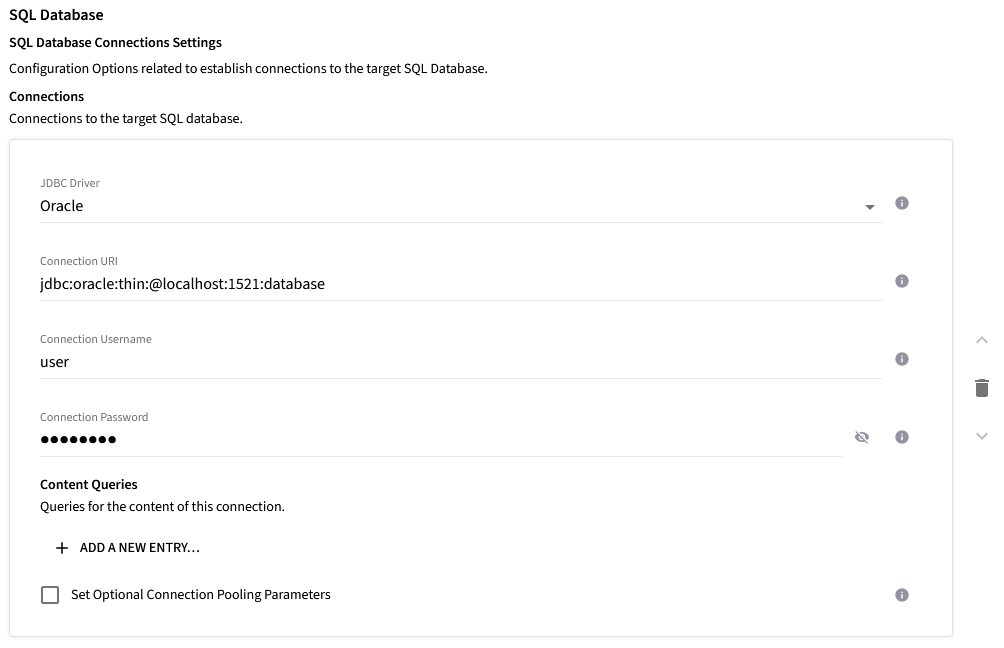
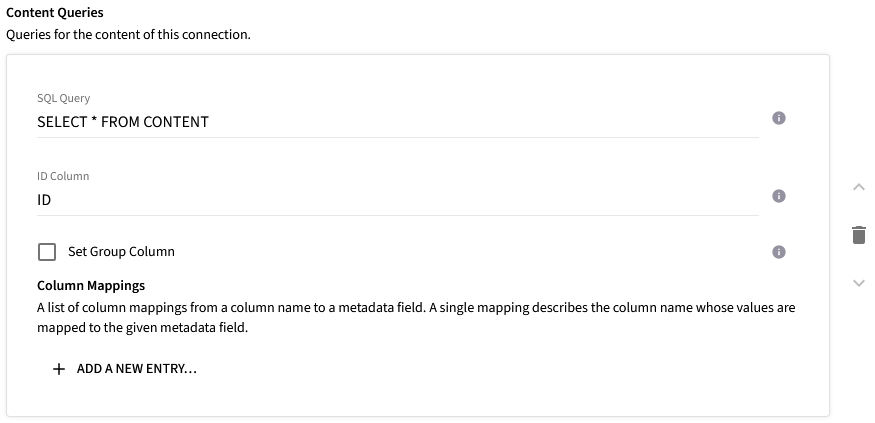
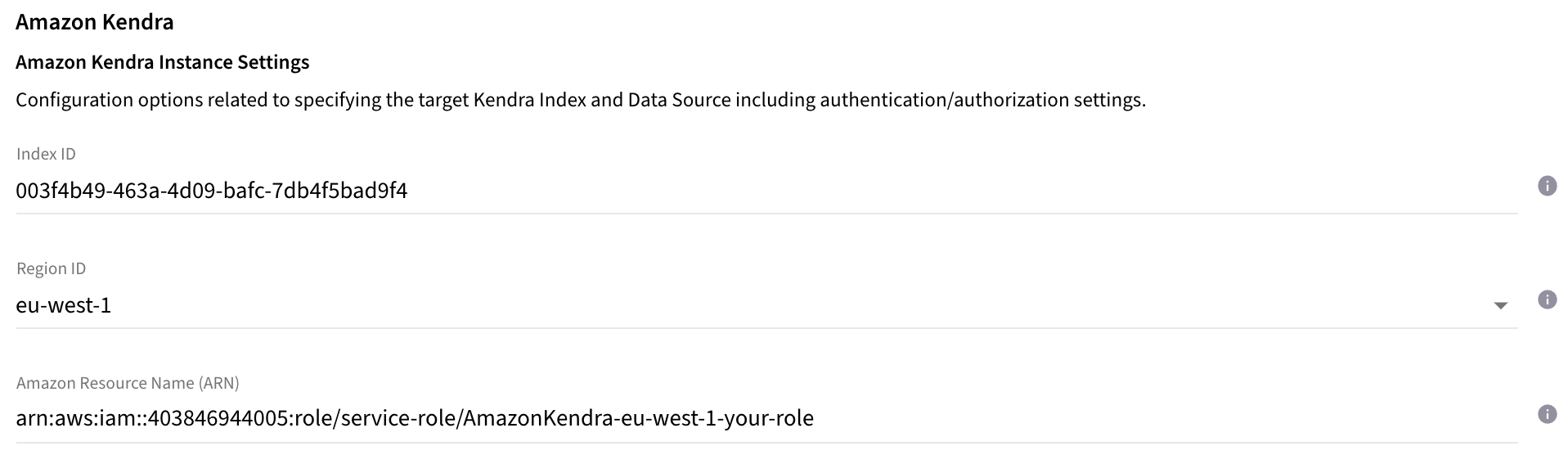

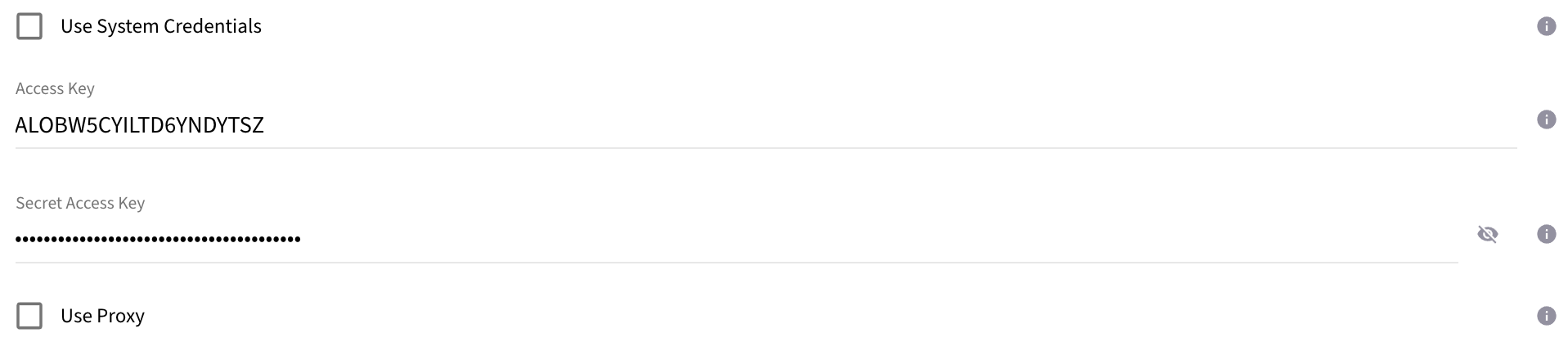

Upload License
-
Contact Raytion and obtain a license for your connector
-
Login to the Admin UI
-
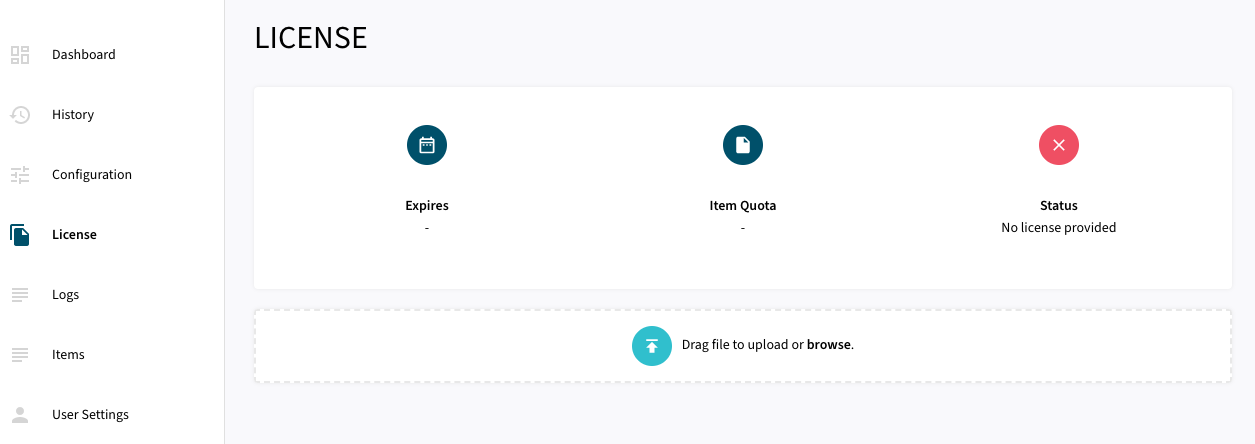
Select License in the menu:
-
Upload the license file by browsing for the file or simply dragging a dropping the license onto the license page
-
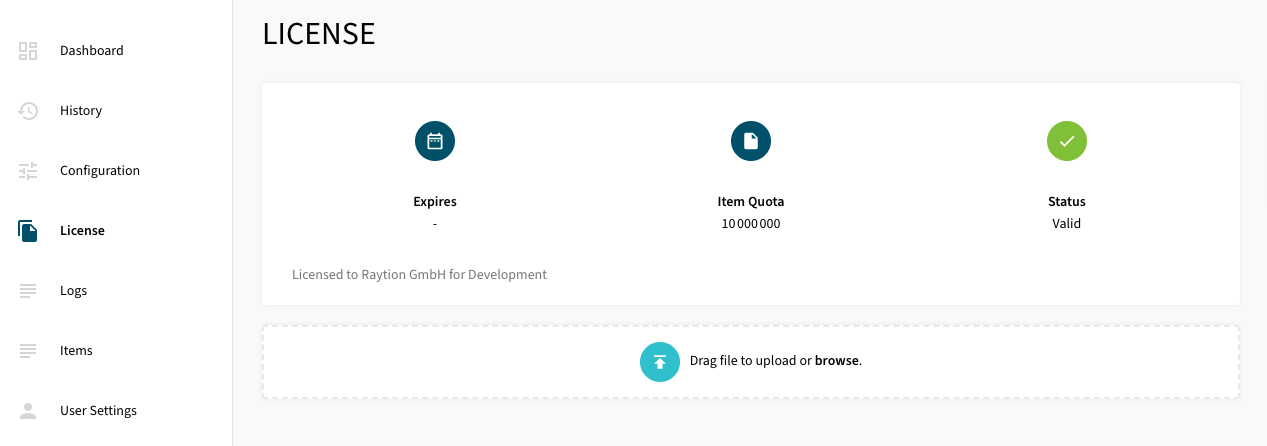
The Status of the license will be displayed as valid, and the expiration and item quota will also be displayed:
Synchronizing Content Information
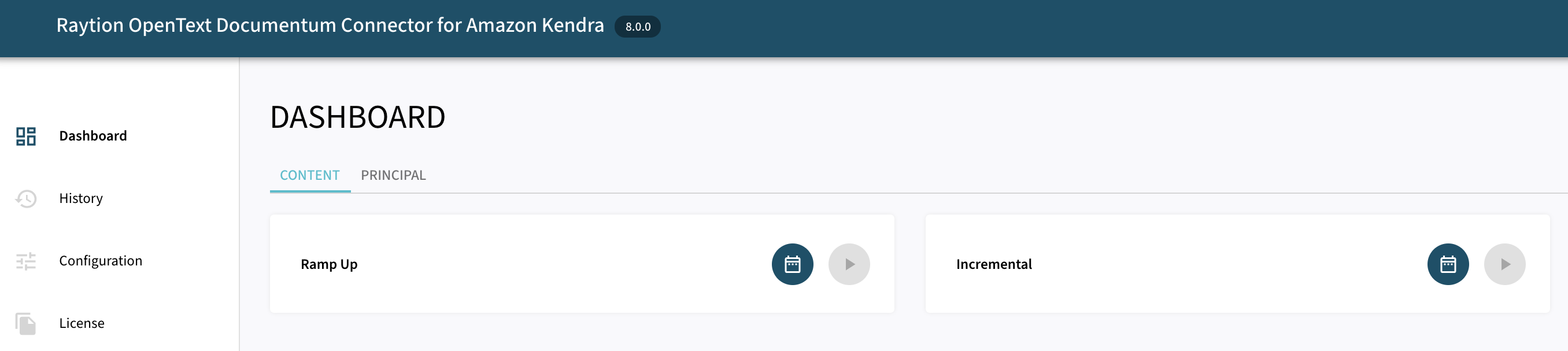
Once, the connector is configured and license uploaded, you can start synchronize content information using the traversal feature in the dashboard.
Content Traversal
In order to synchronize items from source system, the Connector provides different types of execution:
-
Ramp-Up: All items from source system are processed to the search engine. This includes also previously synchronized unchanged items. Note, that Ramp-Up will not delete deprecated items.
-
Incremental: All items are from source system are compared against the state in the connector from previous synchronization runs. Only changed items (this includes newly added, modified and moved items) will be processed to Amazon Kendra. This type can be used to reduce the load on the search engine. Incremental Runs will also synchronize delete information by deleting all removed items from the search engine index.